What Actually Works with Veo 3.1 (And What Doesn't)
I spent weeks trying to make Google's Veo 3.1 produce professional branded videos. I ran 7 formal tests on UI screenshot animation alone. I tried extension chaining, first-frame interpolation, motion-only prompting, PIL compositing, and more. Here's what actually works, what absolutely doesn't, and the pipeline I ended up with.
Why I Needed AI Video
I build dashboards, automations, and data pipelines. For a recent project, the team needed videos: product walkthrough clips, explainer videos for partner onboarding, campaign promos. They wanted them fast and they wanted them branded.
The options were: hire a motion designer ($$$), learn After Effects (weeks), or figure out if AI video was actually ready for production work.
I chose "figure it out." What followed was the most productive and frustrating creative sprint of my career.
The Tools I Tested
Before I show you what worked, here's every tool that touched this pipeline:
| Tool | What I Used It For | Verdict |
|---|---|---|
| Veo 3.1 | Video generation + extension chaining | Great for creative, bad for UI |
| Remotion | Programmatic video from React components | Pixel-perfect, total control |
| ElevenLabs | Voiceover (Sarah voice) + SFX + background music | Incredible quality |
| Nano Banana Pro | Quality-critical single assets (gemini-3-pro-image-preview). Thinking mode for complex prompts. | Best quality, slower |
| Nano Banana 2 | Batch work, fast iteration (gemini-3.1-flash-image-preview). Up to 4K, Google Search grounding. | Best all-around |
| ffmpeg | Chromakey, fade-to-black, audio mixing | Essential glue |
| PIL (Pillow) | Green screen compositing before Veo | Critical pre-processing step |
| Google Colab | Running Veo/Gemini scripts with GPU | Free and reliable |
I also had 24+ curated Python scripts from Google's Gemini cookbook that I referenced constantly — categorized by use case: image gen, video gen, audio, structured output. Having a personal reference library of working code patterns saved hours of API guessing.
What Veo 3.1 Is Actually Good At
Let me be clear: Veo 3.1 is genuinely impressive for the right use case. I shipped 7 hero spotlight videos and a full campaign overview video using it. Here's what works beautifully:
- Narrative/storybook style videos. I described a purple leather storybook on a wooden desk with watercolor illustrations and 3D gaming icons popping from the pages. Veo nailed it. Golden sparkles, warm lighting, smooth camera movements. Gorgeous.
- Extension chaining. This is the killer feature. You generate Scene 1, then "extend" it with Scene 2, then Scene 3. The audio, voice, music, and visual style carry forward seamlessly. 3 scenes = 22 seconds. That's the sweet spot.
- AI voiceover from prompts. You describe a voice personality in the prompt —
"A woman with a calm, warm, low-pitched voice, like a friendly podcast host"— and Veo generates the narration, music, and SFX together. The voice acting is surprisingly good. - Reference images for style consistency. Pass up to 3 pre-generated PNGs as
reference_imageswithreference_type="asset"on Scene 1. The extension chain carries the style forward to all subsequent scenes.
I generated 6 hero spotlight videos (22 seconds each) and a 43-second campaign overview with this approach. They looked professional. People at work said "wait, this is AI?"
The 7 Tests That Failed
Then someone asked me to animate a UI screenshot walkthrough. A dashboard demo. Step-by-step product tour. How hard could it be?
Hard. Very hard. Here's every test I ran, and why each one failed:
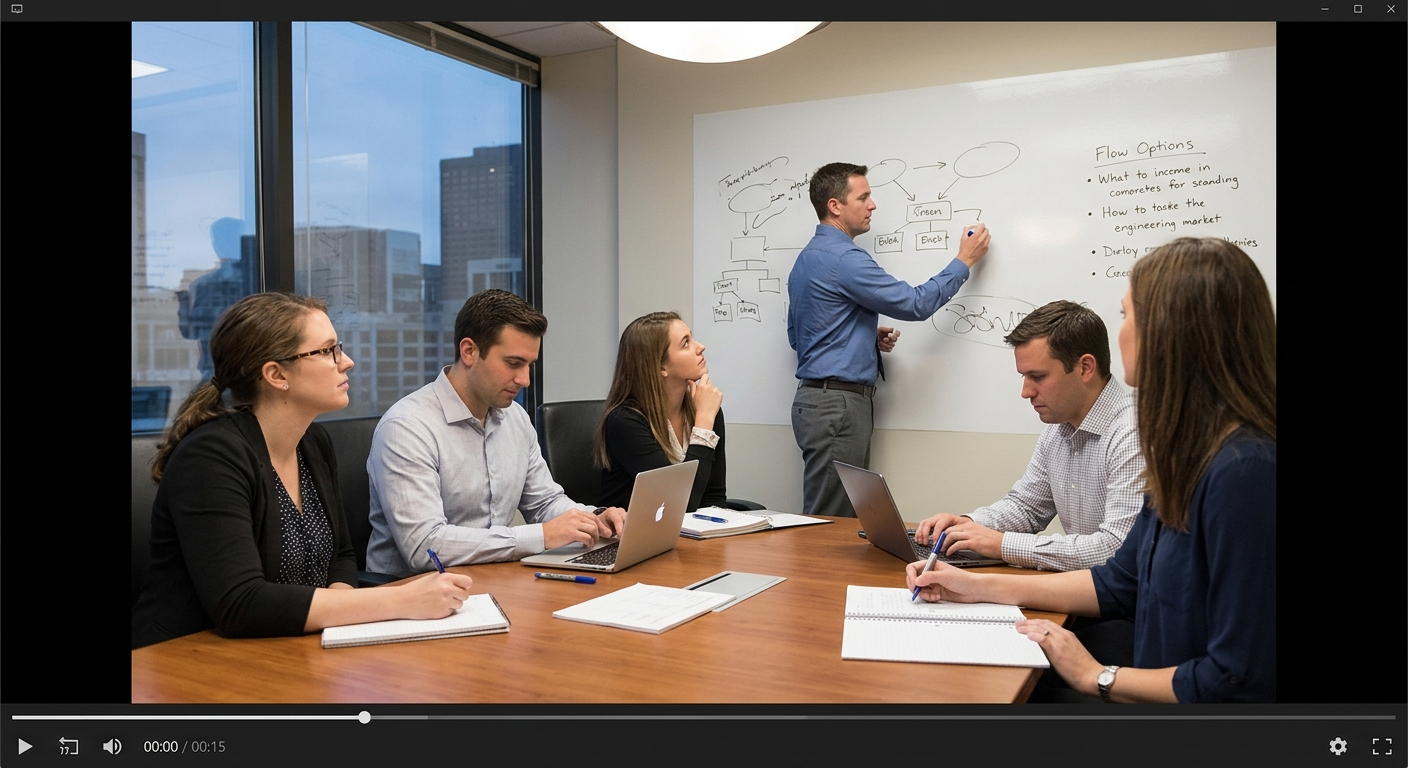
Asked for a product dashboard. Got a stock photo of an office meeting.
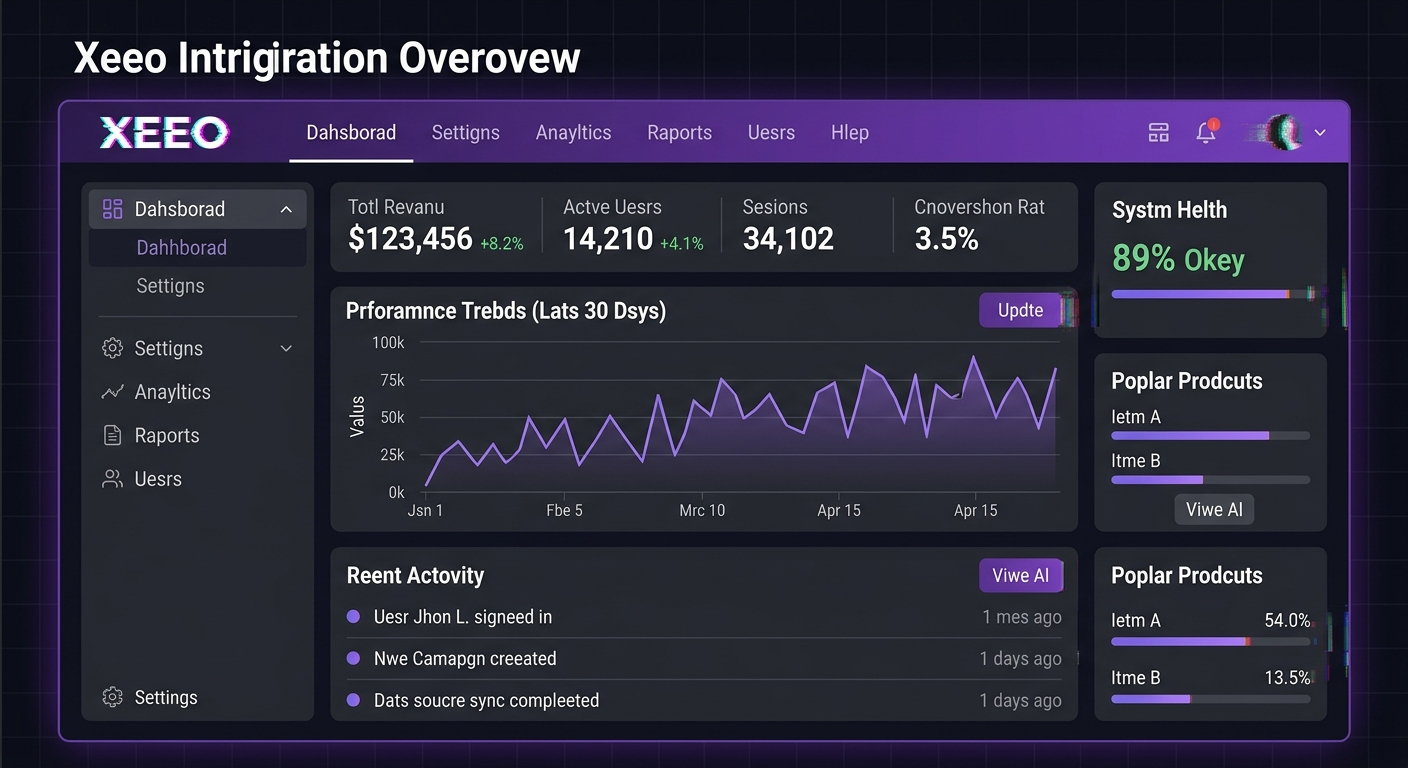
Every single word misspelled: "Dahsborad", "Settigns", "Systm Helth 89% Okey"
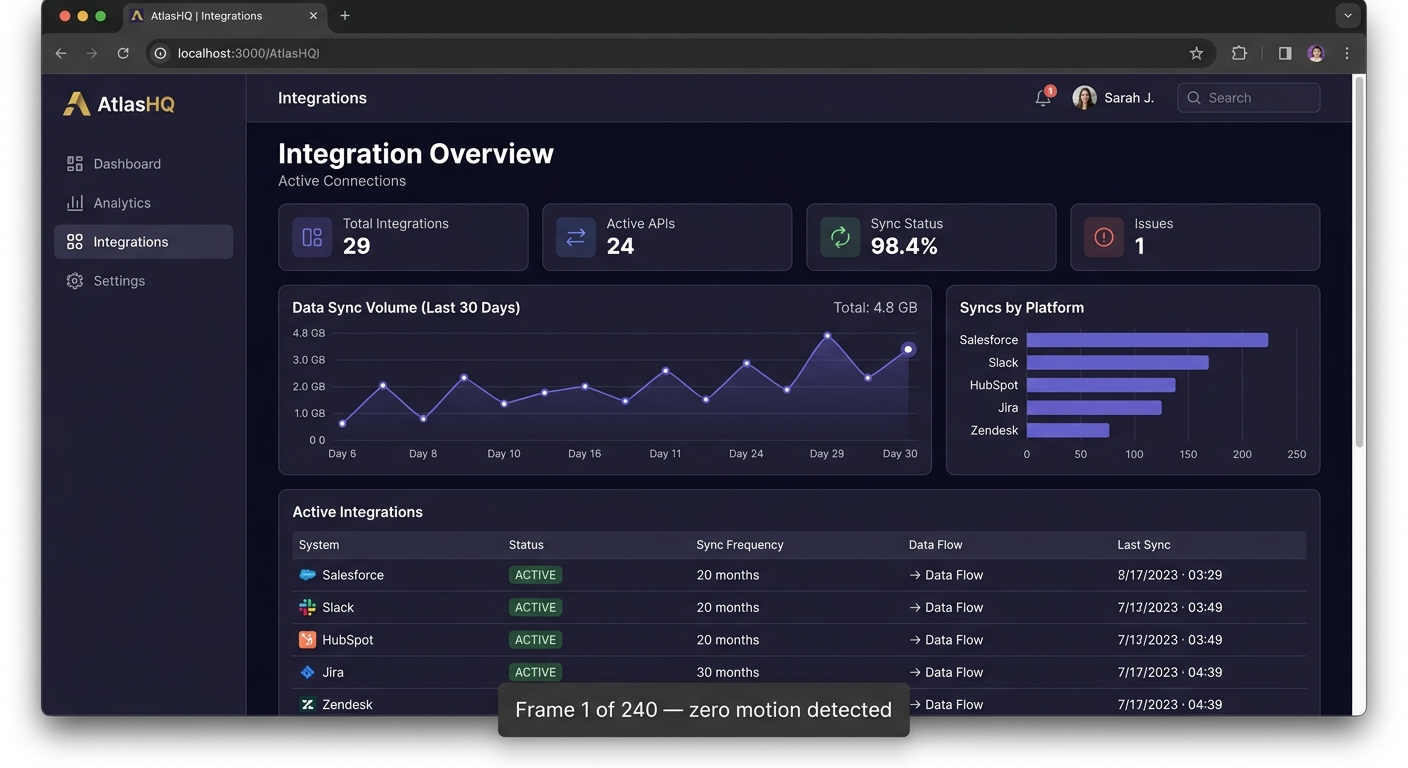
Text is perfect. Animation is nonexistent. "Frame 1 of 240 — zero motion detected."
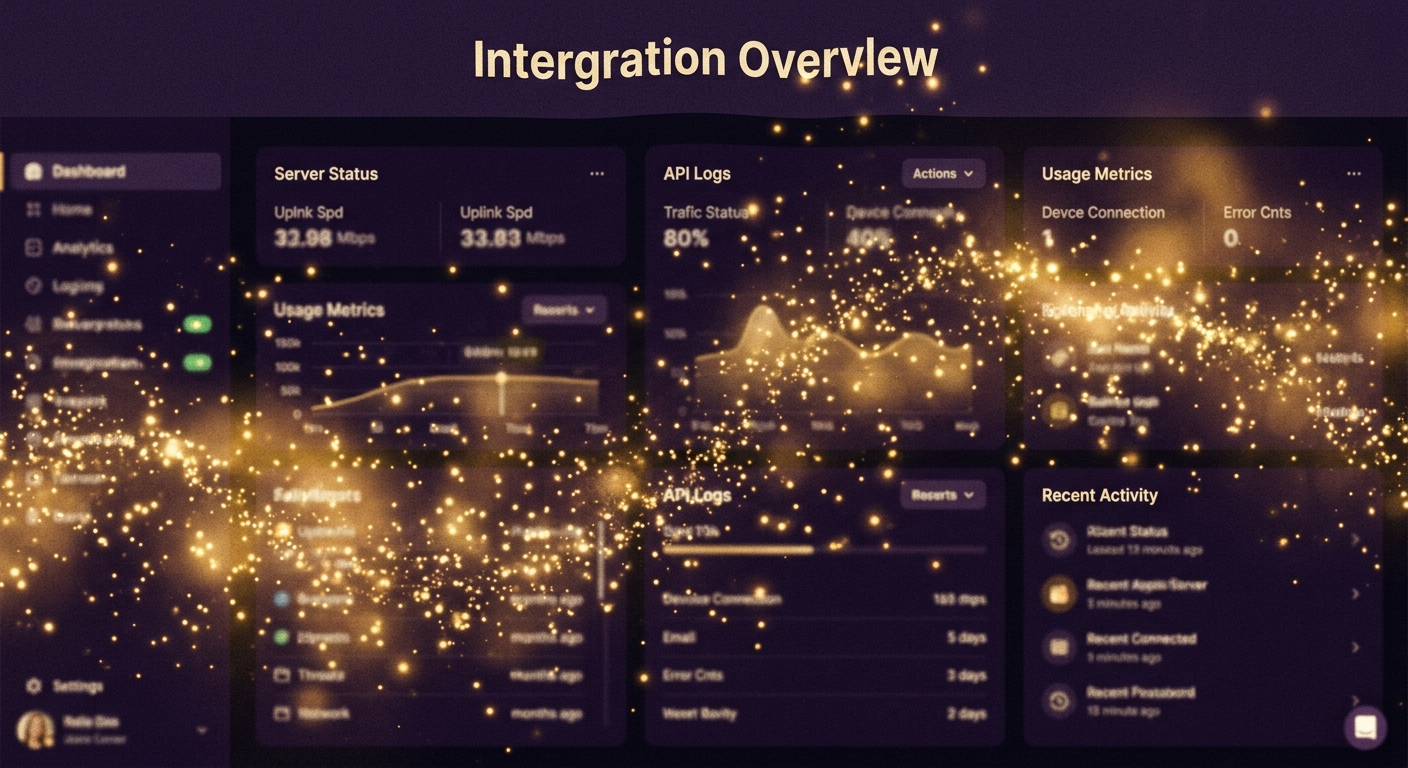
Looks magical. But "Intergration Overvlew" — the sparkles can't save the text.
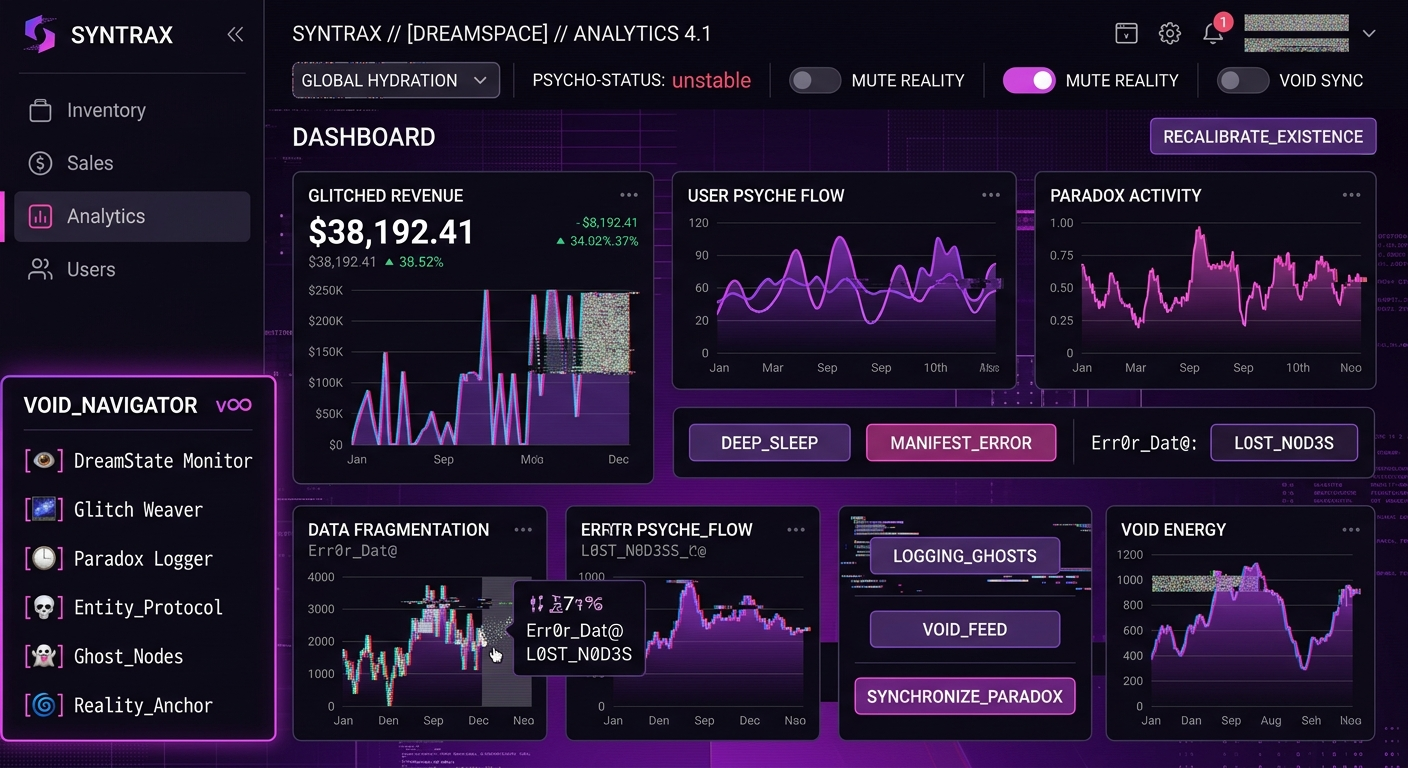
Veo invented an entire new app: "SYNTRAX", "PSYCHO-STATUS: unstable", "VOID_NAVIGATOR"
"Veo treats screenshots as textures, not rigid structures. It's a feature film director, not a screen recorder."
— my conclusion after Test 7
The fundamental problem: Veo is a generative model. It doesn't "animate" an image — it generates new frames that look like they could follow from that image. For creative content, that's amazing. For UI text that needs to stay pixel-perfect, it's a dealbreaker.
The Pipeline That Actually Works
After Test 7, I stopped trying to make Veo do UI demos. Instead, I split the work: Veo for creative elements, Remotion for everything pixel-perfect, ElevenLabs for audio.
And this is what the winning hybrid pipeline produces:
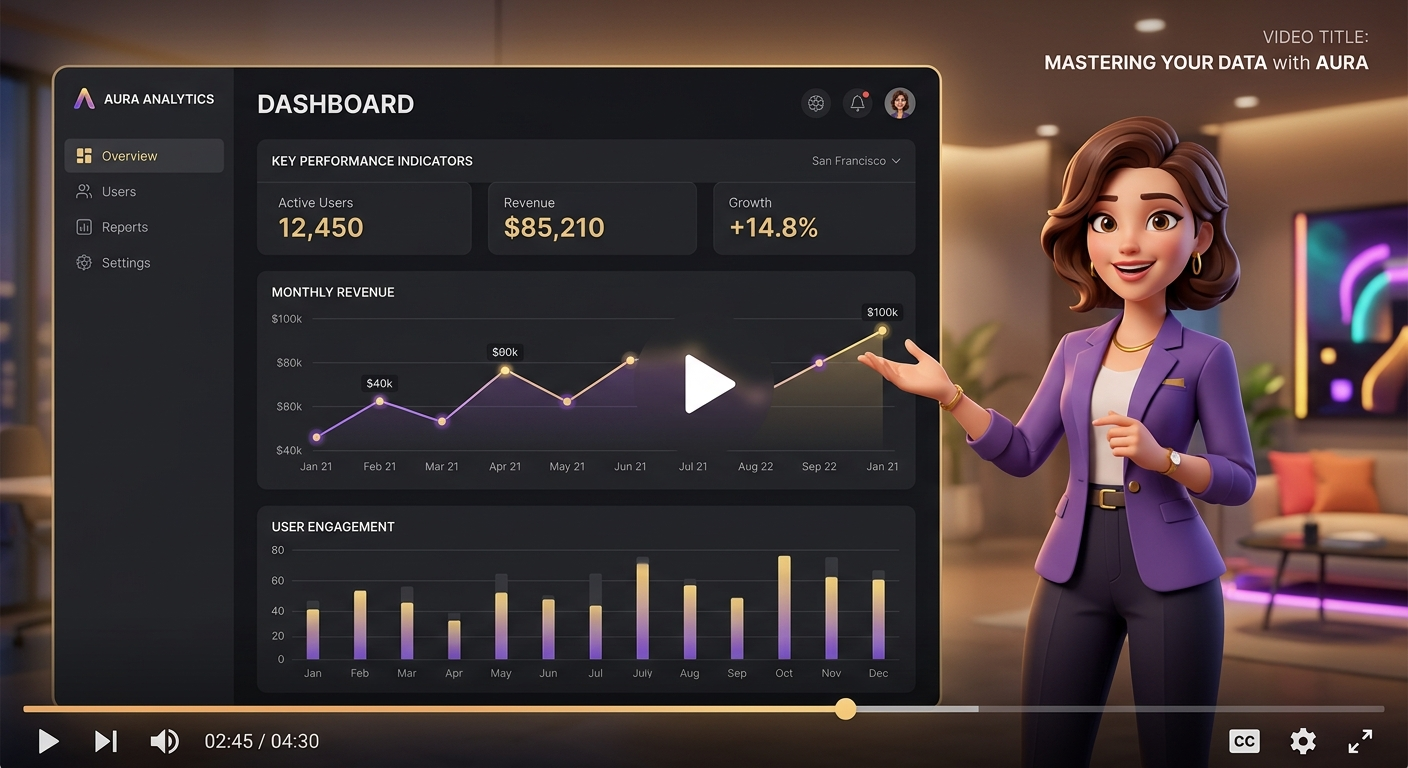
Pixel-perfect dashboard + animated 3D character + studio voiceover. Three tools, one pipeline.
Here's how each step works:
1. Generate 3D assets with Nano Banana
Google calls Gemini's native image generation "Nano Banana" — three models under one name. I used all three:
- Nano Banana Pro (
gemini-3-pro-image-preview) — for quality-critical single assets. It has a built-in "Thinking" mode that reasons through complex prompts before generating. Slower, but the output quality is noticeably better for detailed work. - Nano Banana 2 (
gemini-3.1-flash-image-preview) — the workhorse. Fast iteration, up to 4K output, supports up to 14 reference images, and can ground with Google Search. This is the one I used 90% of the time. - Nano Banana (
gemini-2.5-flash-image) — the speed-optimized original. Good for quick tests.
None of them generate true transparent PNGs. So I prompt for a solid green (#00FF00) background, then post-process with numpy to remove the green and create RGBA PNGs. Edge anti-aliasing prevents green fringing. This gave me 23 branded 3D assets — coins, trophies, badges, characters — all with clean transparency.
python3 generate_image.py -p "A golden trophy, isometric 3/4 view, gaming collectible style, glossy plastic material, just the object floating by itself" -n trophy --no-refsPro tip: Use --no-refs for simple icons. Passing brand logo reference images confuses the model into reproducing the logo instead of the object you asked for. Nano Banana 2 supports up to 10 object reference images and 4 character references in a single prompt — but only use them when you need style/character consistency, not for every generation.
2. Composite on green screen with PIL
This step is critical and non-obvious. If you just tell Veo "green screen background" in a prompt, the first ~1 second of video starts BLACK before transitioning to green. That ruins chromakey.
The fix: use PIL to composite your character PNG on a solid green background before sending it to Veo. Frame 0 is already green. Problem solved.
3. Animate with Veo 3.1
Image-to-video with the pre-composited green screen image. Veo generates a 4-second animation clip. The green stays solid because it was already green from frame 0.
4. Chromakey with ffmpeg
ffmpeg -i input.mp4 -vf "chromakey=0x00FF00:0.15:0.1" \
  -c:v libvpx-vp9 -pix_fmt yuva420p output.webm
This strips the green and outputs a WebM with alpha transparency. The 0.15:0.1 values (similarity:blend) are tuned tight to avoid eating into the character edges. Took a few tries to get right.
5. Compose in Remotion
Remotion is a React-based programmatic video framework. You write your video as React components with spring animations, easing functions, and frame-precise timing. The Veo-animated characters overlay on top of pixel-perfect UI screenshots.
<OffthreadVideo src={staticFile("character.webm")} transparent />Remotion gives you everything Veo can't: pixel-perfect text, precise timing, spring animations, spotlight effects, progress bars, typewriter text, 3D perspective transforms. I had 9 scenes with UI screenshots that zoomed, highlighted, and spotlighted exactly the right elements at exactly the right time.
6. Add audio with ElevenLabs
ElevenLabs for the voiceover (Sarah voice, "Mature, Reassuring, Confident" preset), plus their SFX API for whooshes, clicks, and dings. Background music generated separately as a loop. Everything mixed and synced to Remotion's frame timeline.
Audio-first workflow: Generate the voiceover first, use Whisper to get word-level timestamps, then design your scene durations around the VO. Trying to match VO to pre-built scenes is backwards — I learned this the hard way.
Extension Chaining: The One Technique That Changes Everything
If you take nothing else from this post, take this: extension chaining is the only way to maintain voice and style consistency in Veo.
Here's the problem: if you generate two separate Veo clips, they will have different voices, different music, different pacing. Even with identical prompts. ffmpeg concat of separate clips produces jarring cuts — different audio signatures, different energy levels.
Extension fixes this. You generate Scene 1, then pass the result as video=prev_video to Scene 2. The voice, music, and visual style carry forward. It's like telling a story in chapters — same narrator, same universe.
Scene 1 (8s, base): Explicit voice direction + hero introduction + reference images
Scene 2 (7s, extend): "The narrator continues warmly:" + substantive content + camera pushes in
Scene 3 (7s, extend): "The narrator says encouragingly:" + CTA + camera pulls back + closing visual
Total: ~22 seconds. 2 scenes = too short (~15s). 4+ scenes = diminishing returns. 3 is perfect.
Extensions can fail transiently — always use retry logic. Wait 15 seconds, try up to 3 times. And plan ALL scenes before generating. The extension chain is ephemeral — you can't resume it later or extend from a downloaded MP4.
11 Things That Definitely Don't Work
- Veo text rendering. Always garbled. "Integration Overview" becomes "Xeeo Intrigration Overovew." Never rely on Veo for on-screen text. Ever.
- Cross-session extension. Veo operations are ephemeral. You can't upload an MP4 from yesterday and extend it. One session, one chain.
- Combining
image=withreference_images=. API error. You can use one or the other, not both. person_generation="allow_all". Errors out. Use"allow_adult"instead.- The
seedparameter. Only works on Vertex AI, not the Gemini API. Can't reproduce results. reference_type="style". Veo 2.0 only. In 3.1, use"asset"instead.- ffmpeg
drawtextoverlay. Needs freetype, which isn't in Homebrew's default ffmpeg build. PIL overlay works but produces frozen frames. - Post-production CTA ending. Adding a separate CTA clip after the main video is always jarring — audio gap, visual reset, voice mismatch. Bake the CTA into Scene 3 instead.
- Describing UI content in video prompts. If you name buttons, labels, or menu items in your prompt, Veo will hallucinate variations of them. Use motion-only prompting: describe camera movement, not content.
- 2 scenes. Only ~15 seconds. Not enough content to be useful. Always plan for 3.
- Veo for "green screen background" without pre-compositing. First second starts black, ruins chromakey. Always composite with PIL first.
The Params Cheat Sheet
If you're going to use Veo 3.1, here are the settings I landed on after extensive testing:
Model: veo-3.1-generate-preview
Resolution: 720p for extensions, 1080p for standalone
Duration: 8 seconds per clip (max)
Max chain: ~148s (20 extensions, but 3 is the sweet spot)
Gen time: 60-90 seconds per clip
Cost: Free with a Gemini API key
Audio: Generated natively from prompt (voiceover + SFX + music)
Voice consistency: Only maintained within extension chain
Negative prompt: "no subtitles, no text generation, no captions, no object warping, no motion blur"
For text preservation specifically (if you really must try):
- Use
resolution="1080p"(not 720p) - First + Last frame interpolation (
image=+config.last_frame=) - Motion-Only prompting (never describe UI content, only camera movement)
- Heavy
negative_prompt(no subtitles, no text generation, no depth of field)
It still won't be pixel-perfect. But it'll be the least-bad result Veo can produce.
When to Use Which Tool
| Need | Use | Why |
|---|---|---|
| Creative/narrative video | Veo 3.1 | Beautiful generative output, built-in voice + music |
| UI demo / product walkthrough | Remotion | Pixel-perfect, frame-precise, React-based |
| Animated characters on UI | Veo → ffmpeg → Remotion | Green screen pipeline gives you animated overlays |
| Voiceover | ElevenLabs | Studio-quality, word-level timestamps via Whisper |
| 3D asset generation | Nano Banana Pro | Thinking mode for complex compositions |
| Fast iteration / batch | Nano Banana 2 | 4K output, 14 refs, Google Search grounding |
The Remotion Learning Curve
Fair warning: Remotion has a learning curve. It's React, but it's not a web app. You're thinking in frames, not pixels. Spring animations replace CSS transitions. useCurrentFrame() replaces useState().
But once it clicks, it's absurdly powerful. I built:
- Spotlight effects (dark overlay with bright cutout) for highlighting UI elements
- 3D perspective transforms on screenshot entry (20deg rotateX)
- Staggered spring reveals (title → tagline → input fields with delays)
- Typewriter text effects (1 char/frame with blinking cursor)
- Continuous zoom to specific areas of a screenshot
- Animated characters overlaid via transparent WebM
- Perlin noise bobbing on mascot characters (natural floating motion)
- TransitionSeries for scene-to-scene animations
All controllable via a Zod schema in Remotion Studio — you can adjust highlight positions, timing, and text content in a sidebar UI without touching code. This is the dream for iteration.
Licensing note: Remotion is free for development and previewing. Commercial rendering is $25/seat/month. Worth it if you're producing videos regularly.
What I'd Do Differently
1. Audio-first from day one
I spent way too long tweaking video timing, then trying to match voiceover to it. Generate VO first, get word-level timestamps with Whisper, design scenes around the audio. Everything flows better this way.
2. Skip the Veo UI experiments
I should have known after Test 2 that Veo wasn't going to work for UI screenshots. Instead, I ran 5 more tests "just to be sure." Those hours would have been better spent learning Remotion earlier.
3. Build a Remotion skill library early
After my third video project, I had 40+ reusable animation patterns documented as reference files. Spring configs, noise parameters, transition timings, spotlight positioning math. If I'd started that library on project one, projects two and three would have been 2x faster.
4. Trim Veo animations to 2.5 seconds
Veo morphs characters after ~3 seconds. Arms start drifting, faces distort slightly. Loop a 2.5-second trim in Remotion and it looks intentional — like a subtle idle animation. I only figured this out on the third batch of character animations.
The Bottom Line
AI video in 2026 is real but specialized. Veo 3.1 is genuinely impressive for creative/narrative content. It's not a screen recorder. It's not After Effects. And it's definitely not going to render your UI text correctly.
The winning move is hybrid: use Veo for what it's good at (creative content, animated characters, narrative videos), Remotion for what needs to be precise (UI, text, branded layouts), and ElevenLabs for studio-quality audio. Stitch them together with ffmpeg and the green screen pipeline.
It's not one tool. It's a pipeline. And once it's set up, you're producing videos that look like they took a motion design team — in an afternoon.
"Wait, this is AI?"
— my coworker, watching the explainer video I built in a weekend
Nobody's written this guide honestly yet. Everyone's either hyping Veo ("just describe your video and it appears!") or dismissing it ("AI video isn't ready"). The truth is in the middle: it's ready if you know which parts to use and which parts to route around.
Brain Kit ($29)
Capture your video production workflows, prompts, and settings in a searchable knowledge base. Brain Kit gives every AI tool you use persistent memory.
Get Brain Kit — $29Like what I build? Check out the shop — deploy-ready kits starting at $14.
Building tools with AI? So am I.
I write about the honest experience of shipping AI-powered tools. Follow the blog for more build-in-public stories.
Read more posts